Uso
Para empezar a trabajar, seleccione la ventana ISILab Window>ISILab>LevelBuildingSidekick, esto abrirá la ventana principal de la herramienta con la que se podrá empezar a trabajar en un proyecto vacio. A continuación se presenta una descripcion general de que puede hacer con la herramienta:
Ventana Principal
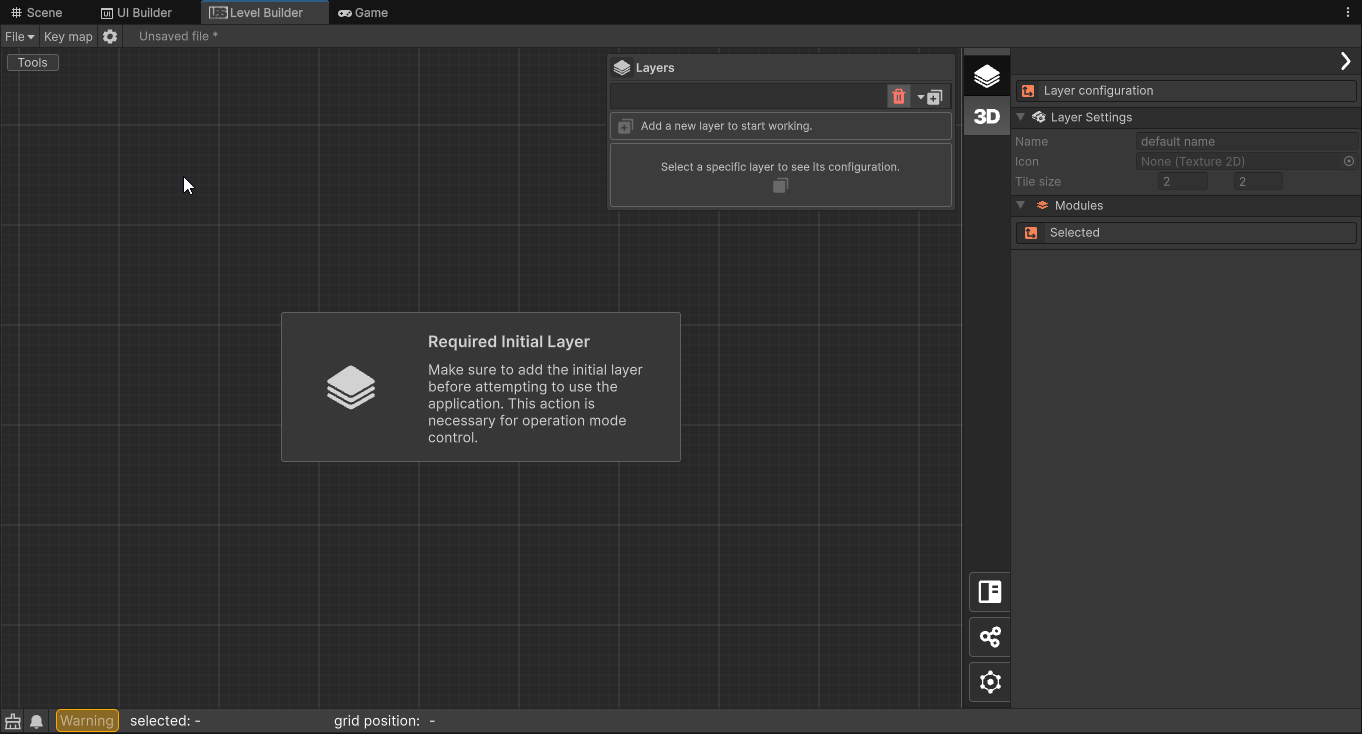
En la ventana principal, encontrarás un área de trabajo grande visualizada con un mosaico de cuadrados, en esta área puedes colocar, mover y eliminar elementos para dar forma a tus niveles. A la derecha de esta, encontrarás un inspector interno que te permitirá trabajar con los valores específicos de los elementos que se van a modificar, sus comportamientos básicos y los asistentes que te ayudarán a trabajar con esta herramienta.
Además de esto, en la barra vertical situada entre los dos elementos mencionados anteriormente encontramos dos botones generales que permiten mostrar y ocultar dos paneles principales para organizar el trabajo. El primero corresponde a un panel para organizar el contenido del nivel por capas, el segundo corresponde al panel que nos permitirá pasar estas capas a estructuras directamente utilizables en Unity.
Layers
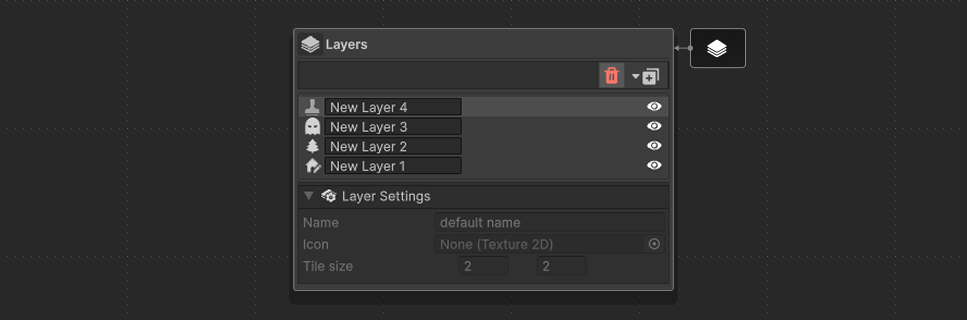
The layers that are created are displayed here. For each type of layer you will have different working tools, and the inspector view will change as well.
currently there a 3 types of layers:
- Map generation layer. See Module-1A or Module-1B
- Entities population layer. See Module-2
- Quest design layer.
3D Generation
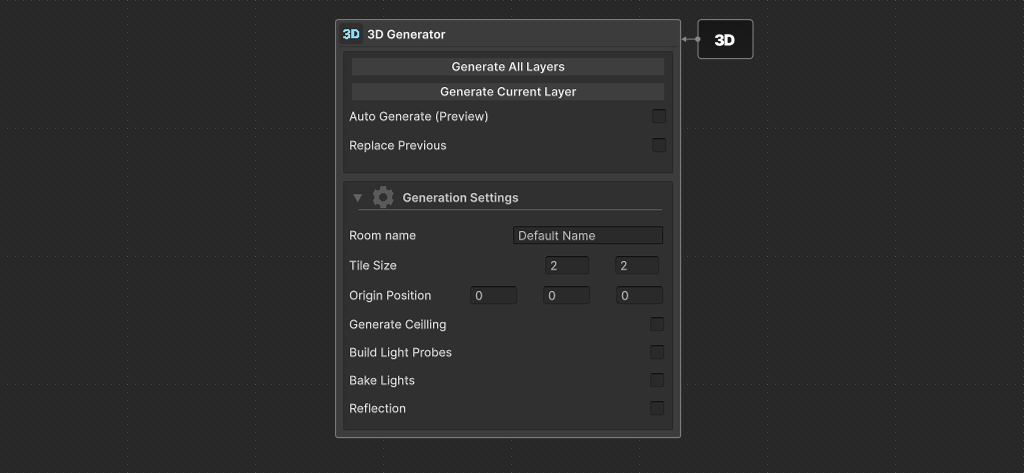
The 3D generator window can be displayed by toggle the 3D button in the side panel, you can press it again to hide the panel.
Features
When generating you can choose to build a single layer (the current selected one) or all the layers in the current project. The generator can be tweak with some configuration option:
- Replace Previous: Allow replace same name tile.
- Tile Size: override the default tile size of the set.
- Generate Ceiling: (Only in step 1A) Close the room and use the
Ceilingbundle. - Build Light Probe: (Only in step 1A) Generate light probes inside each room, allow easy dynamic lighting.
- Bake Lights: (Only in step 1A) Automatically bake light for high quality static lighting.
- Build Reflections: (Only in step 1A) Generate a
ReflectionProbeObject in the center of each room.
LBS Inspector Panel
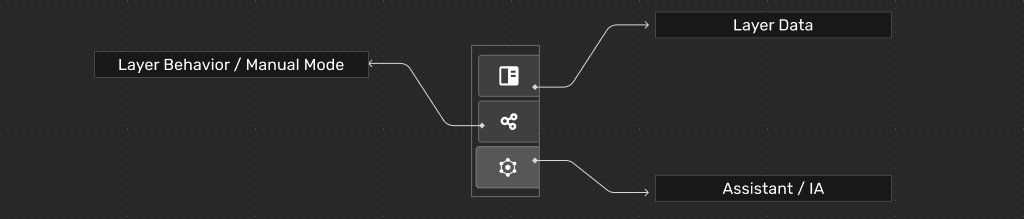
From the bottom-left side panel you can access to a variety of layer specific sections:
- Current data: The information of the selected object in the workspace is displayed.
- Layer Behavior / Manual Mode: You can access the brushes and other options for working manually in the workspace.
- Assistants / IA: The assistants belonging to each type of layer can be displayed.
Old documentation (Spanish)
For a detailed documentation of the LBS we have created a manual for an older version 0.2.0 or earlier. We will soon publish a new and updated manual.